How to embed a Google Map with multiple locations on your website
Google My Maps lets you pin all your addresses on one map and paste it on your site with an iframe, with no API key. Here are the steps, the limits Google states, and the three other methods compared.
To embed a Google Map with multiple locations, create a map in Google My Maps, add each address as a place, make the map public and copy the iframe from "Embed on my site". You paste that code on your page, and Google asks for no API key or billing account along the way.
My Maps covers a short list of addresses that rarely changes. Once your visitors need to search a city, find the nearest shop or read opening hours, a store locator or a custom build with the Maps JavaScript API fits better. This guide walks through the four methods and compares them in one table.
Four ways to show several locations on one map
| Method | API key | Cost | Visitor search | List of stores next to the map | Maintenance |
|---|---|---|---|---|---|
| Google My Maps embed | None | No billing account | No | No | You edit each place by hand in My Maps |
| Google Maps "Share" > "Embed a map" | None | No billing account | No | No, one place per embed | One iframe per location |
| Store locator app or plugin | Depends on the tool | Depends on the plan | Yes, in most tools | Yes, in most tools | You edit, import or sync locations in the app |
| Maps JavaScript API with markers | Required | Billed per map load | You build it | You build it | A developer maintains the code |
The rest of this guide takes each row in turn.
Method 1: Google My Maps
My Maps is Google's tool for building your own maps. It runs on your Google account and stores the maps in your Google Drive.
Create the map
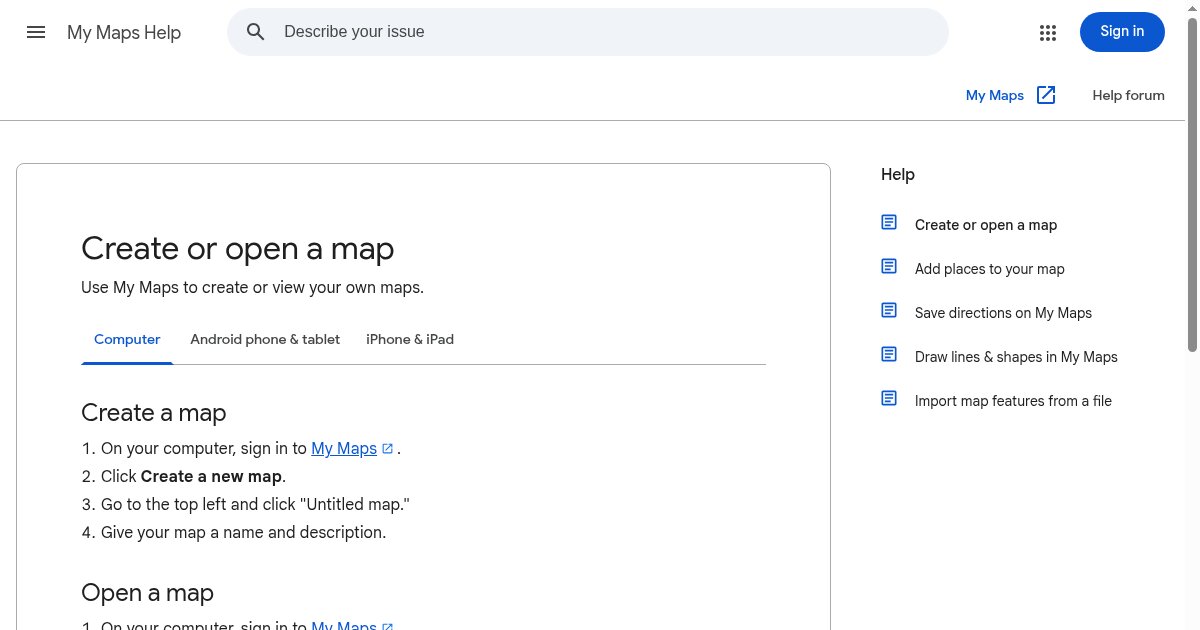
The My Maps Help page "Create or open a map" lists four steps:
- On your computer, sign in to My Maps.
- Click "Create a new map".
- In the top left, click "Untitled map".
- Give your map a name and a description.
Use your business name as the title, since visitors can see it on the embedded map. You can also change the look: next to "Base map" at the bottom of the left panel, click the arrow and pick a style.
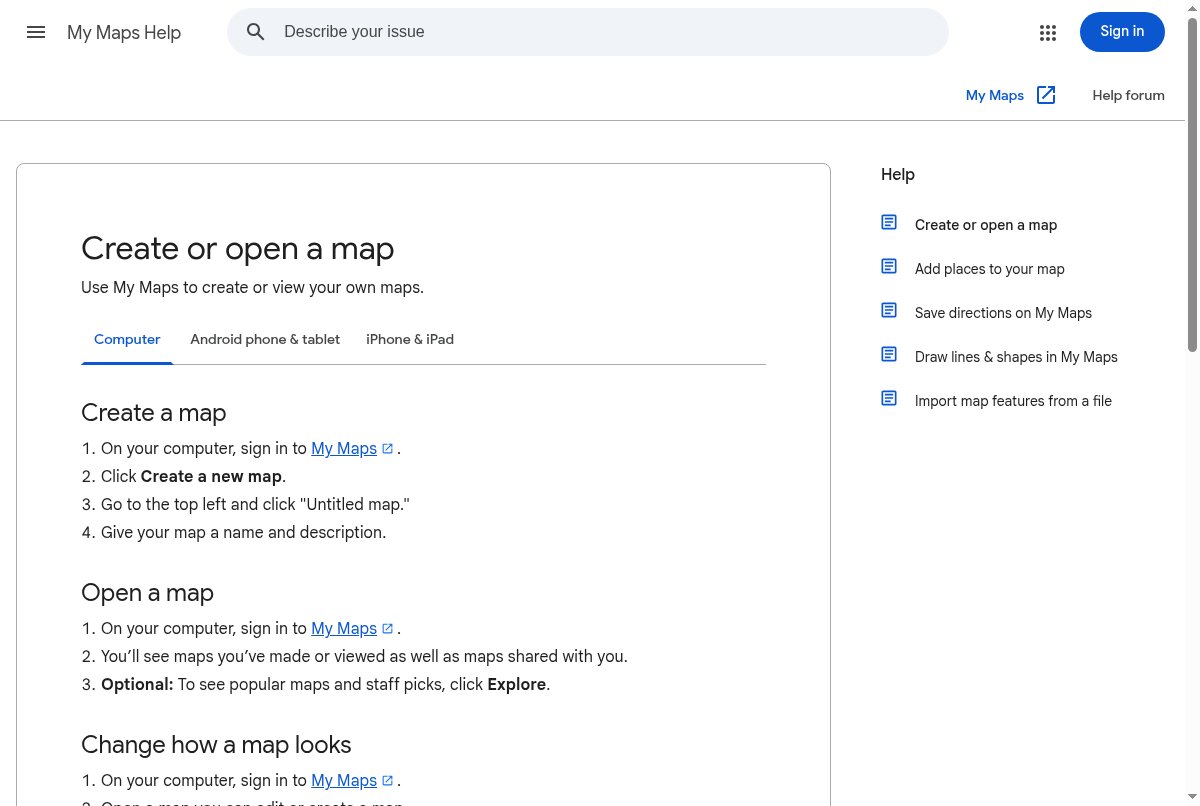 The My Maps Help page "Create or open a map", with the four steps to create a map. Source: support.google.com, captured October 26, 2026.
Add your locations
Google's help page on adding places describes two ways to place a pin.
Search for the place. Type the name or address in the search bar, click the right result on the map, then click "Add to map". This works well for shops that already appear on Google Maps.
Draw the marker yourself. Click "Add marker", select a layer, click where the place sits, give it a name and click "Save". Use this for an address that Google does not find, or for a stockist inside a larger building.
To fix a pin that landed on the wrong side of the street, click the place and drag it on the map. The icons in the box that opens let you edit the rest.
Layers help you sort your locations: one for your own shops, one for stockists, for example. Google states the limits on the same help page: a map can have up to 10,000 lines, shapes or places, and a layer can have 2,000.
Make the map public and get the embed code
The My Maps Help page on sharing gives the steps under "Add your map to a website":
- Open the map in My Maps.
- In the left panel, click "Share" or the menu, then "Embed on my site".
- Make sure the map is public.
- Follow the on-screen instructions and copy the code.
The public setting sits in the "Share" panel: "Make your map public" allows anyone to find your map. Google requires it for an embed, so do not put private addresses on the same map.
Paste the iframe on your site
The code is an HTML iframe. Paste it where your website builder accepts custom HTML: an HTML block, an embed widget or a code section. You can change the width and height attributes in the snippet to fit your layout.
When you add or move a location later, you make the change in My Maps, on the same map.
Limits of a My Maps embed
My Maps puts every pin on one map, and that is all it does for the visitor. Keep these limits in mind before you pick it for a store finder:
- The visitor gets no search box for their own address or city.
- The map does not sort locations by distance and has no "near me" button.
- No list of stores sits next to the map; the visitor clicks pins one by one.
- You maintain every address by hand in My Maps. Nothing syncs with your shop system or your website's data.
- The map must stay public to remain embedded.
For a handful of offices or a map of event venues, these limits rarely matter. For a retail network with dozens of points of sale, they push the work onto your visitors.
Method 2: Google Maps "Share" > "Embed a map"
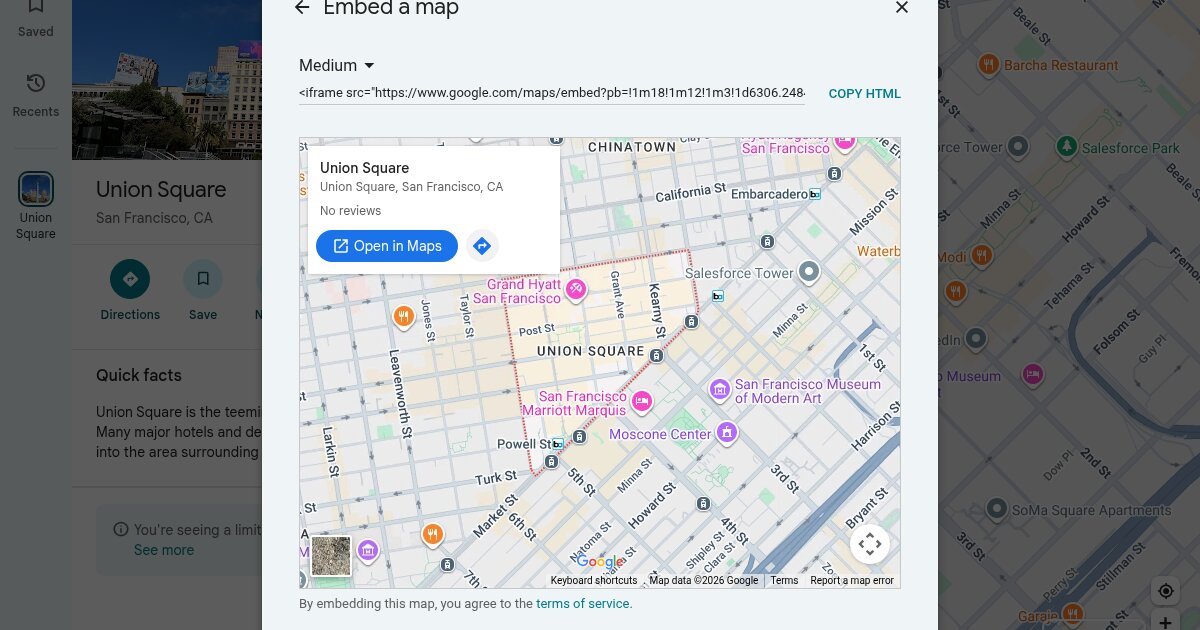
Google Maps itself has an embed option, and it covers one place. Open Google Maps on a computer, search the place, click "Share", then open the "Embed a map" tab. You pick a size (Small, Medium, Large or Custom) and click "Copy HTML". When we tested this flow on October 26, 2026, Google asked for no API key and no Cloud project, and the preview showed a single place card with "Open in Maps".
The limit comes from Google itself. A Google Maps help answer states: "You can't share a map with your saved locations, a map with distance measurement or image of the map itself from Google Maps" (Google Maps Help Community). One embed shows one place, so three shops mean three separate iframes.
A developer can also call the Maps Embed API directly. Google's Maps Embed API usage and billing page states that the API is free to use with unlimited requests and has no daily limits, and that every request needs an API key. It still draws one map per iframe, without a list of your stores.
Method 3: a store locator
A store locator adds what My Maps leaves out: the visitor types a city or taps "near me", sees the closest locations in a list next to the map, and reads opening hours and a directions link for each one. Locator apps also give you a place to manage locations, often with a CSV import, so you stop editing pins by hand.
On Shopify, our guide to adding a store locator to Shopify covers the setup, and the comparison of the best Shopify store locator apps lists the options. Some apps draw their map with OpenStreetMap and skip the Google key; Locastore is one of them.
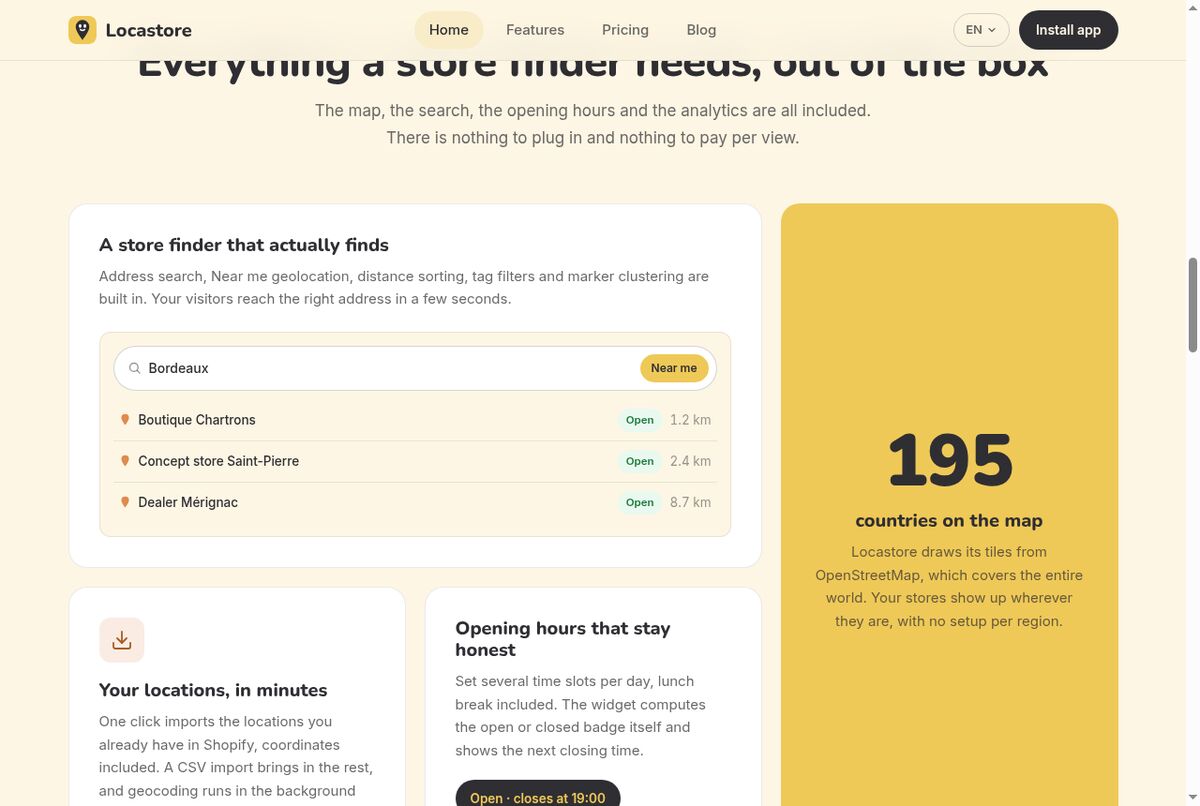 A store locator with address search, "Near me", open badges and distances, from the Locastore home page. Source: locastore.app, captured October 26, 2026.
Method 4: Maps JavaScript API with markers
Developers can build their own multi-location map with the Maps JavaScript API: they load a map, place one marker per location from your data, and code the search, list and filters on top.
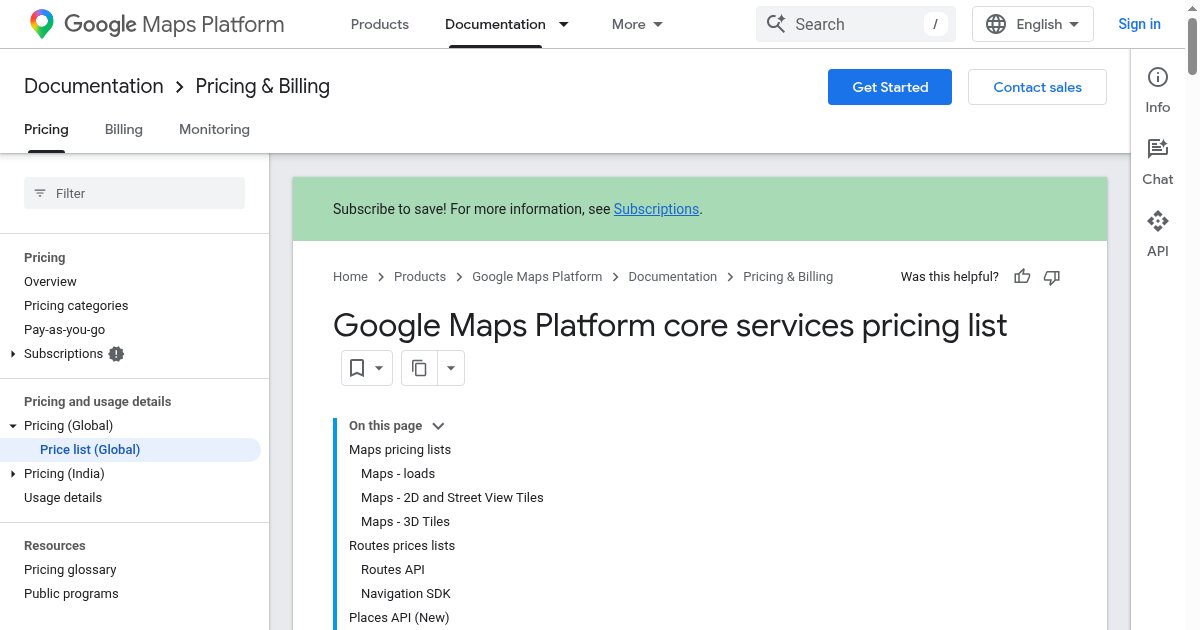
This route gives full control, and it comes with a Google Cloud setup. Google's Maps JavaScript API usage and billing page states that you must enable billing on each project and include an API key with every request. Map loads trigger the Dynamic Maps SKU, and features such as Autocomplete, Geocoding or Place Details each have their own SKU and price.
Our guide to Google Maps API pricing for a store locator breaks down what those SKUs cost as traffic grows. Count the developer time too: someone has to write the code, keep the key restricted and update the locations.
On Shopify: paste the My Maps iframe
If you sell on Shopify and My Maps covers your needs, you can paste its iframe in a Custom Liquid section from the theme editor, on the page where you want the map. Our guide to adding a Google map to Shopify shows the steps with screenshots.
Keep in mind that the iframe shows only what you put in My Maps. When you open a new shop or close one, you update My Maps yourself.
Which method to pick
- A few addresses that rarely change: Google My Maps. You build it in a few minutes and pay nothing.
- One shop or one office: the "Embed a map" tab in Google Maps.
- Visitors who need to find the nearest location: a store locator, so they get search, distances and opening hours.
- A custom design or a large data set, with a developer on hand: the Maps JavaScript API, with billing enabled.
Start from what your visitor does on the page. If they only need to see where you are, a My Maps embed does the job. If they need to pick the right shop, give them a search box and a list.
A store locator for Shopify with Locastore
Locastore shows your stores, dealers and stockists on a map inside your Shopify storefront, drawn with Leaflet and OpenStreetMap tiles: no Google Maps API key, no billing account, no quota. You import your Shopify locations in one click, upload a CSV file or add addresses by hand, then add the Store Locator block from the theme editor. Visitors search an address, tap "Near me", sort by distance and see an open/closed badge computed from your opening hours. The free plan covers up to 5 locations, Starter ($5 per month) goes up to 30 with CSV import, and Pro ($24 per month) removes the limit, with a 14-day free trial on paid plans.
Frequently asked questions
How do I embed a Google Map with multiple locations for free?
Use Google My Maps. Sign in with your Google account, create a map, add each address with the search bar or the "Add marker" tool, make the map public, then open the menu and choose "Embed on my site" to get the iframe code. Google asks for no API key in this flow.
How do I show multiple locations on Google Maps without directions?
Add the addresses as places in a My Maps map. Each one appears as a separate pin, with no route drawn between them. Directions in Google Maps link stops into a trip, which is a different feature.
How many locations can a My Maps map hold?
Google's My Maps Help states that a map can have up to 10,000 lines, shapes or places, and that a single layer can have 2,000. Split your locations across several layers if you go past 2,000.
Can I embed several places with the Google Maps Share button?
No. The "Embed a map" tab in the Google Maps Share dialog produces an iframe for the place or view you have open. Google Maps help states that you cannot share a map with your saved locations, so a list of stores needs My Maps, a store locator or the Maps JavaScript API.