How to show your Shopify locations on a map in your store
Your Shopify locations live in the admin, where they manage inventory and fulfillment. To show them to shoppers on a map, you add a store locator app or build a store finder. Here is how locations work, which ones to show and how to get them on a page.
To show your Shopify locations on a map, you install a store locator app that imports them from your admin, or you build a store finder page with the Storefront API. The Locations settings in Shopify manage where you stock, sell and fulfill; shoppers browsing your online store need a page or an app block that draws those addresses on a map.
This guide covers what a Shopify location is, the limit on each plan, which locations deserve a pin, and the steps to get them onto a page.
What a Shopify location is
Shopify's Locations help page defines a location as "any physical place where you sell products, fulfill orders, or stock inventory". Warehouses, retail stores and pop-ups all qualify. Some apps, such as dropshipping apps and third-party logistics services, also count as locations.
Shopify uses them to:
- track inventory separately at each place;
- fulfill orders from the location closest to the customer;
- process in-person sales at retail locations with Shopify POS;
- connect dropshipping or third-party fulfillment apps.
Every item on that list concerns stock and orders. Locations are the backbone of your inventory, and the help page presents them that way.
How to add a location in your admin
The setup guide gives the desktop steps:
- From your Shopify admin, go to Settings > Locations.
- In the "All locations" section, click "Add location".
- In "Location details", enter the location name and address.
- Optional: turn off "Inventory at this location is available to fulfill online orders" if you do not want online orders served from there.
- Optional: in the "Physical storefront" section, activate the setting to list the location as a physical store.
- Click "Save".
When you enter the address, Google verifies it automatically. If Google cannot verify it, Shopify displays a suggested address. Fix any unverified address now: Shopify notes that it can block local delivery and shipping labels, and a clean address also gives you an accurate pin later.
The location limit on each Shopify plan
Shopify caps the number of active locations by subscription plan. The setup guide lists these limits:
| Shopify plan | Active locations |
|---|---|
| Starter | 2 |
| Basic | 10 |
| Grow | 10 |
| Advanced | 10 |
| Shopify Plus | 200 |
Two exceptions matter. Locations you deactivate do not count toward the limit. Apps that physically stock inventory for you, listed under "App and custom fulfillment locations", count as locations but stay outside the limit too. You can check your limit and how many you use on the Locations settings page.
Do Shopify locations appear on your storefront?
The Locations settings handle inventory, fulfillment and POS. The one setting that faces shoppers is "Physical storefront": according to Shopify, it "lets customers find the location through the Shop sales channel and through AI agents". The help page says nothing about a map inside your online store theme.
So if you want shoppers on your own site to see your stores on a map, plan for one of two routes.
The developer route: a store finder on the Storefront API
Shopify Academy publishes an article called "Building a store finder". Its outline walks through creating a store finder template, connecting to the Storefront API, rendering store locations and getting the user's position. This route suits a store with a developer on hand who wants full control over the code and the design. You maintain that code yourself when your theme changes.
The app route: a store locator that imports your locations
Most merchants take the app route. In the Shopify App Store, the store locator category lists many apps that place a map on a storefront page, and several of them read your Shopify locations directly.
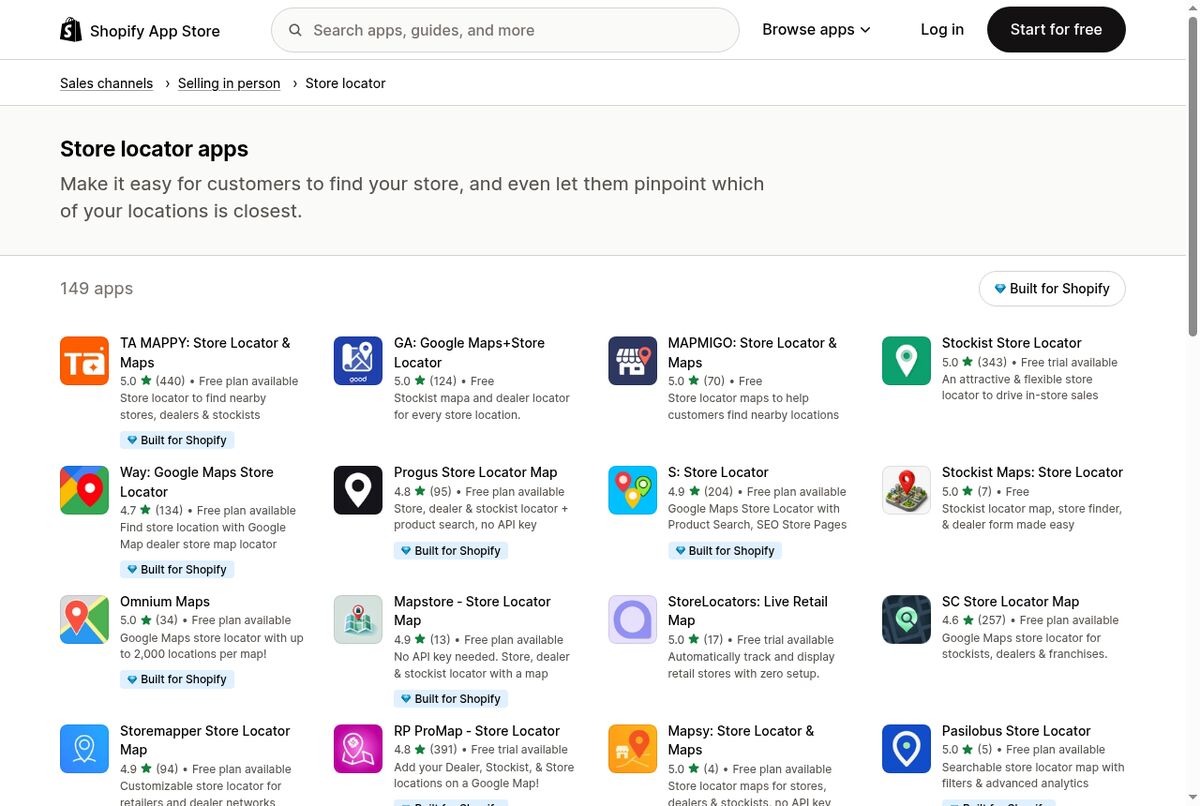 The store locator category of the Shopify App Store. Source: apps.shopify.com, captured September 18, 2026.
The apps differ on the map provider, the location caps and the price. Our comparison of Shopify store locator apps reviews the main options.
Which locations to show shoppers
Your Locations list mixes places shoppers can visit with places they should never find. Sort them before you import anything.
- Retail stores and showrooms: show them. These are the addresses a shopper wants to reach.
- Pop-ups: show them while they run, then remove the pin when they close.
- Warehouses and fulfillment centers: usually hide them. A shopper who drives to a warehouse finds a closed door.
- Fulfillment apps: leave them out. They appear in the "App and custom fulfillment locations" section and have no counter to visit.
Dealers, stockists and retailers that sell your products form a separate group. They hold their own inventory, so they are not Shopify locations, and adding them to your Locations settings would use up your plan limit for nothing. A store locator app handles them as their own list, usually through a CSV import. Our stockist and dealer locator guide explains how to collect and format that list.
How to put your Shopify locations on a map
The steps below follow the usual flow of a store locator app. Menu names vary from one app to another.
- Install the app from the Shopify App Store and open it from your admin.
- Import your Shopify locations. Pick the ones you decided to show. If the app reads coordinates from Shopify, the pins land where Shopify verified the address.
- Add other places. Upload dealers or stockists from a CSV file, or type them in by hand.
- Check every pin. Zoom in on each location and compare it with the street. Move any pin that sits in the wrong spot.
- Fill in the details shoppers use: phone number, opening hours and, if your app supports them, tags such as "Showroom" or "Outlet".
- Add the block to a page. In your Shopify admin, go to Online Store, find your theme, click "Edit theme", choose the template, hover over a section, click "Add block" and select the app block. Then click "Save".
Shopify's sections and blocks guide describes app blocks as blocks that add functionality to your theme, and their availability depends on the app and on whether the section accepts app blocks. If you do not see the block, try another section or a template built for it. Our walkthrough on how to add a store locator to Shopify covers the theme editor in more detail.
Keep the map in sync with your admin
A store locator is only useful if its addresses match reality. A shopper who follows a pin to a closed store will not trust the next one.
When a store closes
In Shopify, deactivate the location first. Deactivating keeps inventory quantities, and Shopify notes that you always need at least one active location. Then remove the location from your store locator, either by editing it in the app or by importing your locations again. Check how your app handles updates: some re-read Shopify, others keep a copy that you edit by hand.
When a store opens or moves
Add or edit the location in Settings > Locations, let Google verify the new address, then bring it into your locator and check the pin.
Details to review each season
Opening hours change on holidays and in summer. Phone numbers change when a store switches provider. Put a reminder in your calendar to review hours, phones and addresses at least each time your schedule changes.
Showing Shopify locations with Locastore
Locastore imports your Shopify locations in one click, with their coordinates. You can add dealers and stockists from a CSV file with background geocoding (Starter plan and up) or enter them by hand, and drag a pin on the admin mini map to fix its position.
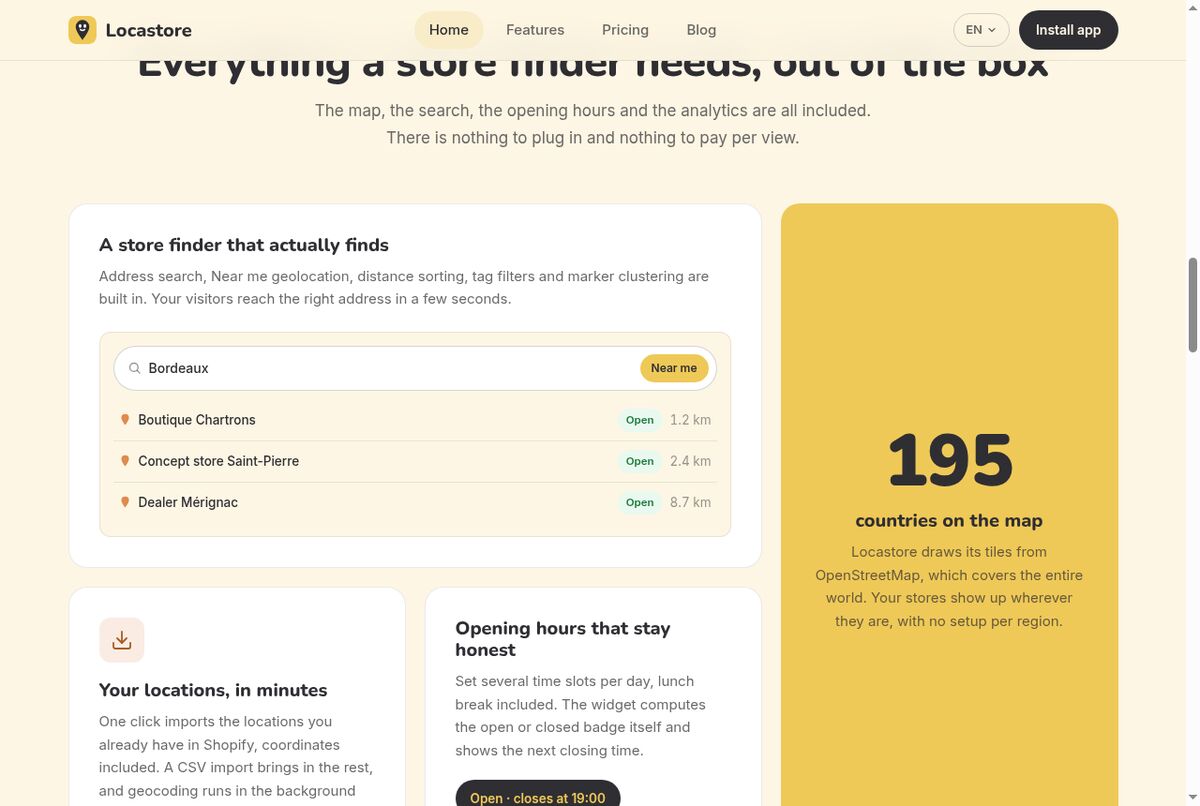 The store finder section of the Locastore home page, with address search, "Near me", open badges and distances. Source: locastore.app, captured October 26, 2026.
The map uses Leaflet and OpenStreetMap tiles, so you create no Google Maps API key and open no billing account. You add the Store Locator block from the theme editor on any page, with 6 display modes, 4 map styles, your brand accent color and your own labels. Visitors search an address or tap "Near me", sort stores by distance in km or miles, filter by tag and see an open/closed badge computed from opening hours that can hold several slots per day. A directions link opens Google Maps.
Locastore puts your Shopify locations on a store locator map in your theme. The Free plan covers up to 5 locations with the full widget and the Shopify locations import, Starter ($5 per month) goes up to 30 with bulk CSV import, and Pro ($24 per month) removes the limit, with a 14-day free trial on paid plans.
Frequently asked questions
How do I add locations on Shopify?
From your Shopify admin, go to Settings > Locations, click Add location in the All locations section, enter a name and an address, then click Save. Shopify verifies the address with Google when you enter it.
How many locations can I have on Shopify?
Shopify sets an active location limit per plan: 2 on Starter, 10 on Basic, Grow and Advanced, and 200 on Shopify Plus. Deactivated locations and apps that stock inventory for you do not count toward that limit.
Do Shopify locations show up on my online store automatically?
The Locations settings manage inventory, fulfillment and POS. The Physical storefront option lets customers find a location through the Shop sales channel and AI agents. To show your addresses on a map inside your own theme, you add a page, an app block from a store locator app, or a custom store finder.
Can I show dealers and stockists that are not Shopify locations?
Yes, with a store locator app. Dealers and stockists hold their own stock, so they do not belong in your Shopify Locations settings. Most store locator apps let you import them from a CSV file or add them by hand, next to your own stores.