Where to buy page on Shopify: structure, map, retailer links
A where to buy page tells people who like your product where to find it. Here is how to build one on Shopify: the page itself, the menu link, a list or a map, and a place for online retailers.
A where to buy page answers one question from people who already like your product: where can I get it? If your brand sells through grocery chains, independent shops or online retailers, this page captures demand that your own checkout never sees. Here is how to build it on Shopify. For the wider picture of a stockist programme (what data to collect, how to measure results), read the stockist and dealer locator guide.
What the page is for
Two kinds of visitors land on it. The first saw your product somewhere and wants to find it in a shop near them. The second would rather order from a retailer they already use online. A good page serves both quickly and is honest about what it cannot promise.
Two of the brand pages we looked at open with that honesty. OLIPOP writes: "All products are subject to availability. Please contact your retailer to ensure products are in stock." Kettle & Fire says almost the same: "Product availability may vary by store so please contact your local retailer to confirm products are in stock." You do not control a retailer's shelf, so tell customers before they make the trip.
Create the page in the Shopify admin
Shopify documents the steps in Creating and editing pages:
- In your Shopify admin, go to Online Store > Pages.
- Click Add page.
- Enter a title, such as "Where to buy", and the page content.
- Under Visibility, keep Visible (the default), or choose Hidden and set a publish date if you want to launch later.
- Click Save.
Then edit the search engine listing at the bottom of the page. Shopify warns that search engines may cut off a title over 70 characters or a description over 160, so stay under both limits. Set the URL handle to something visitors can guess, such as /pages/where-to-buy. If you change the handle later, Shopify offers to create a redirect from the old URL: accept it.
The same help page explains how to embed a Google Map: in Google Maps, choose Share > Embed map, copy the <iframe> code and paste it in the page's HTML view. Google lists Maps Embed as unlimited and free of charge on its pricing page. That map shows only the view you shared, with no search of your retailer list, so it suits a brand with one or two partners at most.
Add it to the main menu and the footer
Following Shopify's menu documentation:
- Go to Content > Menus and pick your main menu.
- Click Add menu item and type a name, for example "Where to buy" or "Find us".
- Click Search or paste a link, choose Pages, then select your where to buy page.
- Click Add, then Save.
Select the page from the list rather than pasting its URL. Shopify cautions that a pasted URL can break and send visitors to a 404 page. Repeat the steps for your footer menu so the link also sits at the bottom of every page.
One trap to remember: if you delete a page that sits in a menu, Shopify deletes the menu item with it. During a redesign, hide the page instead of deleting it.
List or map
The right format depends on how many partners you have.
A list is enough for a few partners. With a handful of shops, a page of names, addresses, phone numbers and links reads well on any screen. Group entries by city or region so visitors can scan straight to their own area.
Past that, visitors need a search. Once your retailers spread across several regions, a long list becomes tedious to scan. A searchable map with distances lets them type a city or zip code and see the nearest shops first. The stockist and dealer locator guide covers the data each entry needs, and these store locator examples show more layouts.
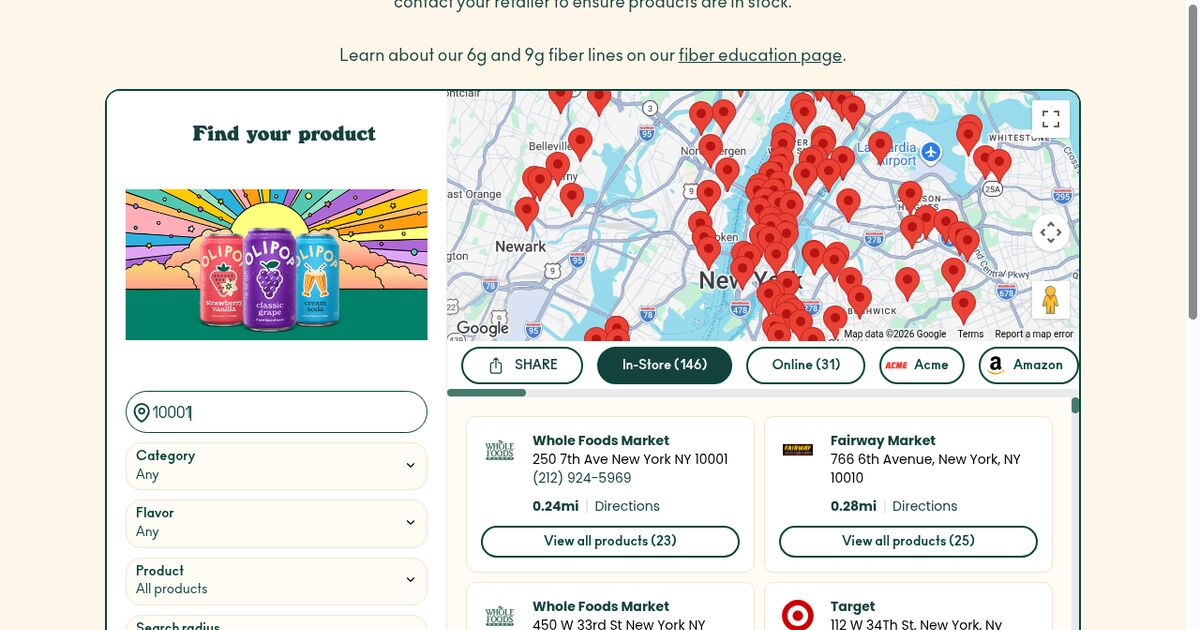
OLIPOP shows how far a brand can take it. Its page, titled "Where to Buy OLIPOP", has a left panel called "Find your product" with filters for category, flavor, product and search radius (within 10, 25 or 50 miles), plus a zip or city field and a "Find" button. A search for zip 10001 returned 146 in-store results. Each store card shows the retailer, address, phone number, distance (0.24 mi for the closest), a Directions link and "View all products (23)". Google Maps draws the map.
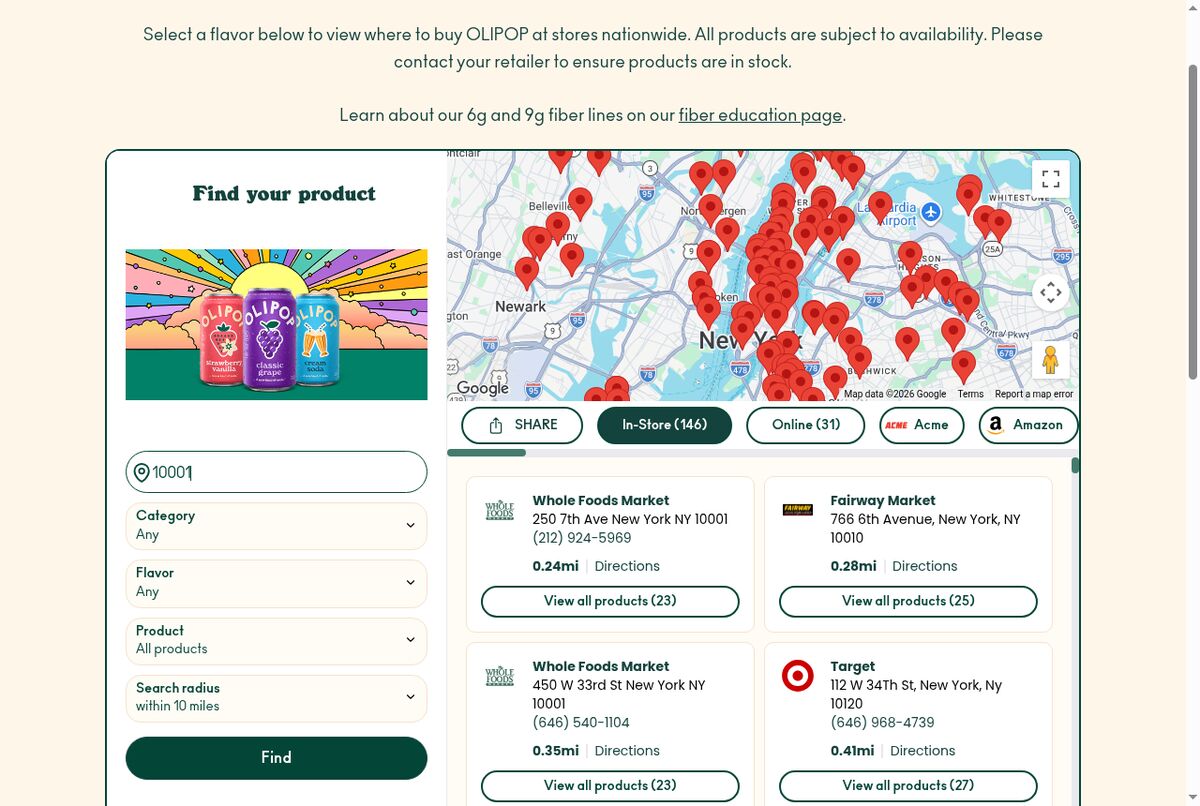 OLIPOP's where to buy page after a search for zip 10001, with In-Store and Online tabs. Source: drinkolipop.com, captured September 18, 2026.
The product filter earns its place when retailers carry different parts of your range. If every partner carries the full range, drop the filter and keep the page simpler.
Give online retailers their own section
Some visitors will never drive to a shop. Give online retailers a separate section or tab so they do not clutter the map.
OLIPOP splits its results into two tabs: In-Store (146 for zip 10001) and Online (31). The Online tab lists retailers such as Amazon, Costco, Instacart, Target, Thrive Market and Walmart, each tagged "Shipping" or "Pickup/Delivery".
Partake Foods uses the same split. Its page leads with the headline "11,000+ Retailers Are Totally Sweet On Us", then a widget titled "Find Partake Near You" with two tabs, "Find a Store" and "Buy Online". A "Product Finder" lets visitors refine the search by product, next to a city, state or zip field. Partake embeds this widget from a third-party where to buy service.
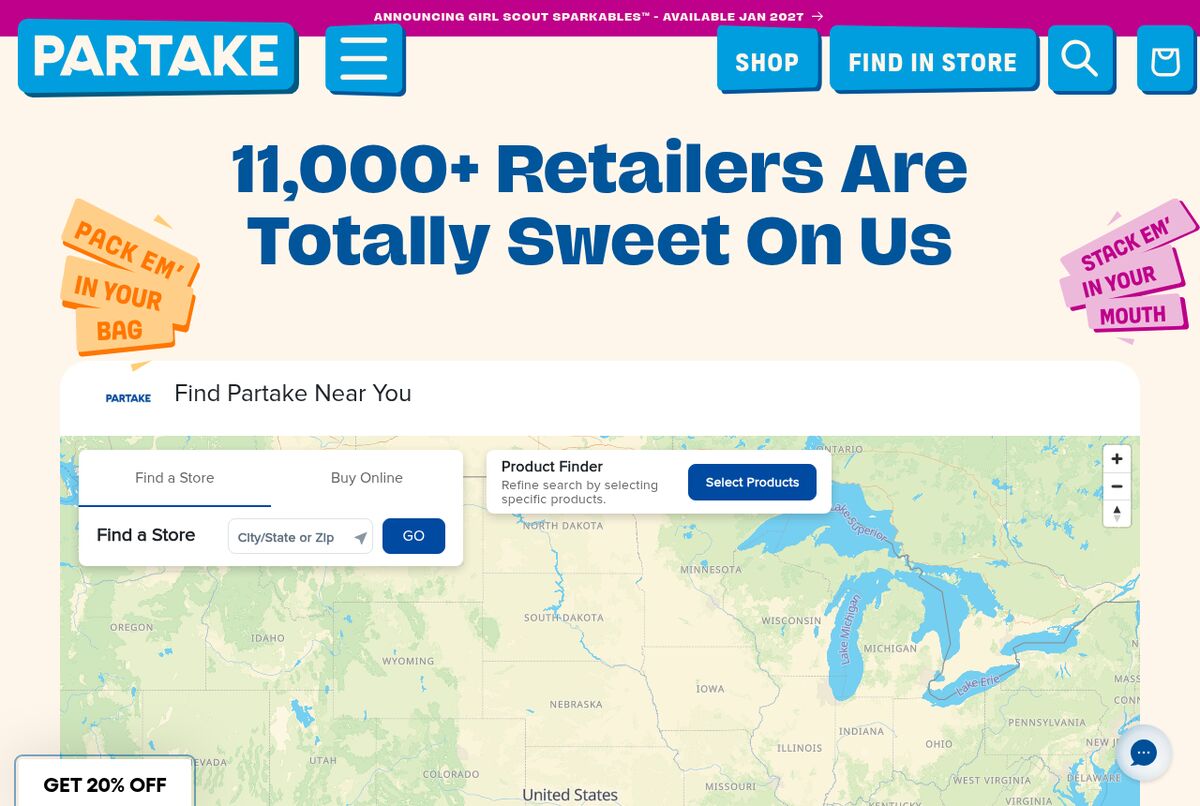 Partake Foods' Find Us page, with separate tabs for stores and online retailers. Source: partakefoods.com, captured September 18, 2026.
That leaves the visitor with no retailer nearby. Kettle & Fire handles this case on its store locator: below the search, it offers a subscription on its own site ("Subscribe & save 20% off for life", with a "Try a subscription today" button). A direct-sale fallback gives an empty search somewhere to go.
Put together, these pages share four habits worth copying:
- an availability disclaimer at the top;
- a product filter when retailers carry different products;
- separate in-store and online results;
- a direct-sale offer for visitors with no shop nearby.
Keep the data current
A where to buy page goes stale every time a retailer drops a product or closes a branch.
Settle two things up front:
- Who sends updates. Name one person on the sales or wholesale side who tells the page owner about new accounts and lost ones. Ask larger retailers to send their store lists as a spreadsheet, so you import instead of retyping.
- When you review. Set a review date, check the whole list against your latest orders, and put the next date in the calendar before you close the file.
Building the searchable part in Shopify
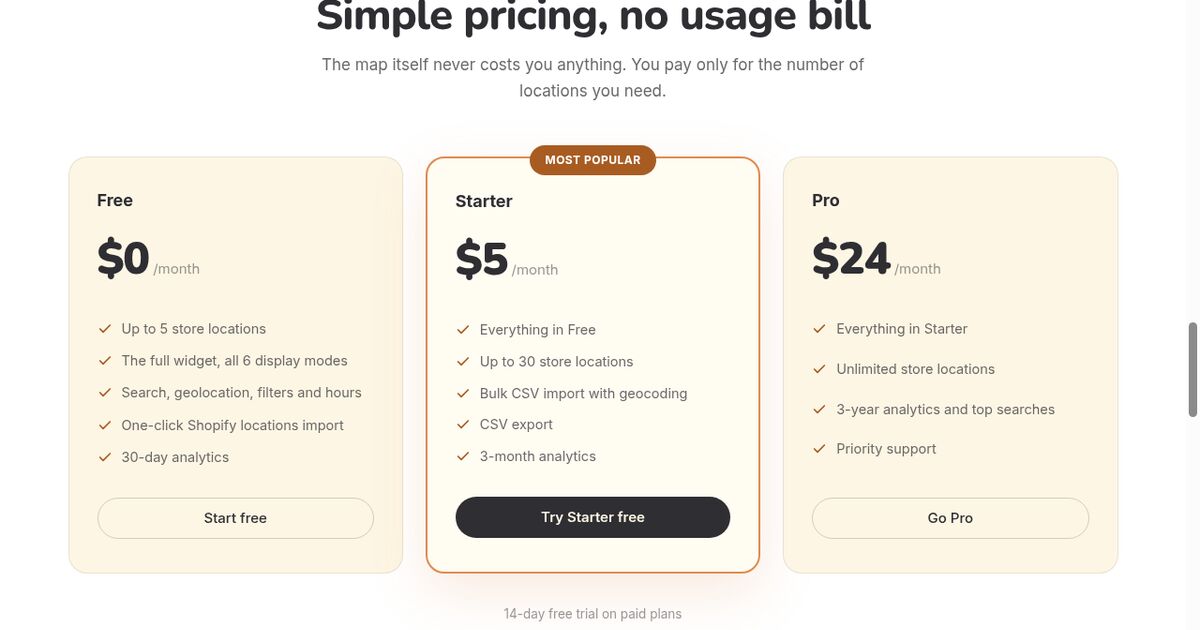
If you choose the map, an app can handle search, distances and directions for you. Locastore adds a Store Locator block from the theme editor, so you can place it on the where to buy page you just created. You can upload your retailer list as a CSV (Starter plan, $5 per month, up to 30 locations), and Locastore geocodes each address automatically. Tags let visitors filter by type of location, for example grocery chains versus independent shops. The app serves locations through Shopify's app proxy, and the map library loads only on the page that holds the block. Keep your online retailers in a separate section of the page content, above or below the block.
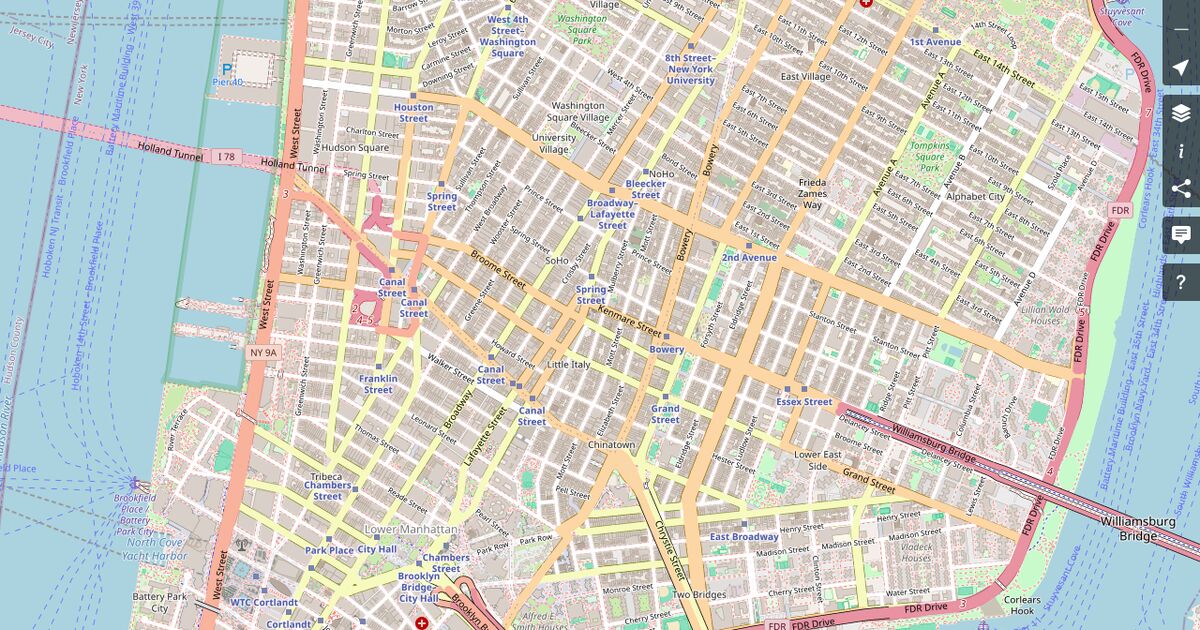
Locastore shows your stores, dealers and stockists on an OpenStreetMap map inside your Shopify storefront, without a Google Maps API key, and its Free plan covers up to five locations.
Frequently asked questions
How do I create a where to buy page on Shopify?
In your Shopify admin, go to Online Store > Pages and click Add page. Enter a title and the content, keep Visibility on Visible (or choose Hidden with a publish date), then click Save. Edit the search engine listing to set a clear URL handle such as /pages/where-to-buy.
How do I add the page to my main menu?
Go to Content > Menus, pick your main menu and click Add menu item. Name it, click Search or paste a link, choose Pages and select the page, then click Add and Save. Shopify warns that pasting the URL instead of selecting the page can break the link and lead to a 404.
Should I list online retailers on a where to buy page?
Yes, in a separate section or tab so they do not mix with physical shops. OLIPOP, for example, splits its results into In-Store and Online tabs, and Partake Foods uses Find a Store and Buy Online tabs.
List or map for a where to buy page?
A plain list works when you have a few partners. Once your retailers spread across several regions, a searchable map with distances lets visitors find the nearest shop without scrolling through every entry.