Store locator page design: 12 rules from research and real pages
A good store locator page puts a search box above the fold, offers a current location button, shows a list and a map side by side and gives every store a card with distance, hours and directions. Here are 12 design rules, built on Nielsen Norman Group research and real locator pages.
A good store locator page design puts a search box above the fold, offers a "Use current location" button, shows results as a list next to a map, and gives each store a card with its distance, hours and a directions link. The 12 rules below come from Nielsen Norman Group's research on store finders and from what real locator pages do well.
For visual inspiration, our review of store locator examples walks through ten brand pages; this article is the checklist.
What the research says about store locators
Nielsen Norman Group (NN/g) has tested store finders for years. Its article Store Finders and Locators reports four rounds of usability studies, with 46 users testing locators on 28 desktop websites and 28 mobile websites and apps. Participants had to find the closest location and get directions to it.
Four findings shape the checklist:
- Most users succeed, fewer find it easy. Users succeeded 97% of the time in Study 4, yet they completed only 57% of locator tasks easily. NN/g counts difficulty on 40% of tasks.
- The search step causes most problems. Of the three steps (finding the locator, using it, getting directions), NN/g names the second as the main source of trouble, with finders "either too complex, or they are oversimplified".
- Many people start on a search engine. When asked to find a nearby branch of their bank, 80% of users went straight to a search engine or a mapping app, mainly Google Maps. NN/g still advises keeping a locator for visitors already on your site.
- Directions belong in the visitor's map app. In Study 4, only two of the 11 sites tested gave directions with an on-site map tool. The others linked out to an external mapping tool.
NN/g's full report runs to 175 pages with 50 evidence-based guidelines; the rules below draw on the public article and on pages we captured.
The 12 rules at a glance
| # | Rule | What to check on your page |
|---|---|---|
| 1 | Entry point | A "Find a store" link on every page |
| 2 | Search box | Above the fold, accepts a city or ZIP code |
| 3 | Current location | An explicit button, not only the browser prompt |
| 4 | Default state | Something useful before the first search |
| 5 | List and map | Side by side on desktop, kept in sync |
| 6 | Distance | Shown on every result, nearest first |
| 7 | Store card | Address, phone, hours, open status, directions |
| 8 | Filters | Products or store types, only if stores differ |
| 9 | Directions | A link to the visitor's map app |
| 10 | Mobile | List first, map one tap away |
| 11 | Empty state | An online option when no store is near |
| 12 | Technical | Light page, usable list, visible map credits, text addresses |
1. Put a "Find a store" link on every page
NN/g tracked how easy locators are to reach. In Study 1, only 30% of sites included an obvious link to the locator. By Study 4, 91% did, and NN/g notes that made-up or fancy link names are "almost a thing of the past". It also recommends that all pages link to the locator, since a visitor can decide to visit you from any page.
Add a header or footer link labeled with the words people expect, such as "Find a store" or "Where to buy". For retailer networks, see our guide to a where to buy page on Shopify.
2. Put the search box above the fold
Place the search field at the top of the page, before any brand copy. Let it accept a city, a ZIP or postal code, or a full address, with a placeholder such as "City or ZIP code".
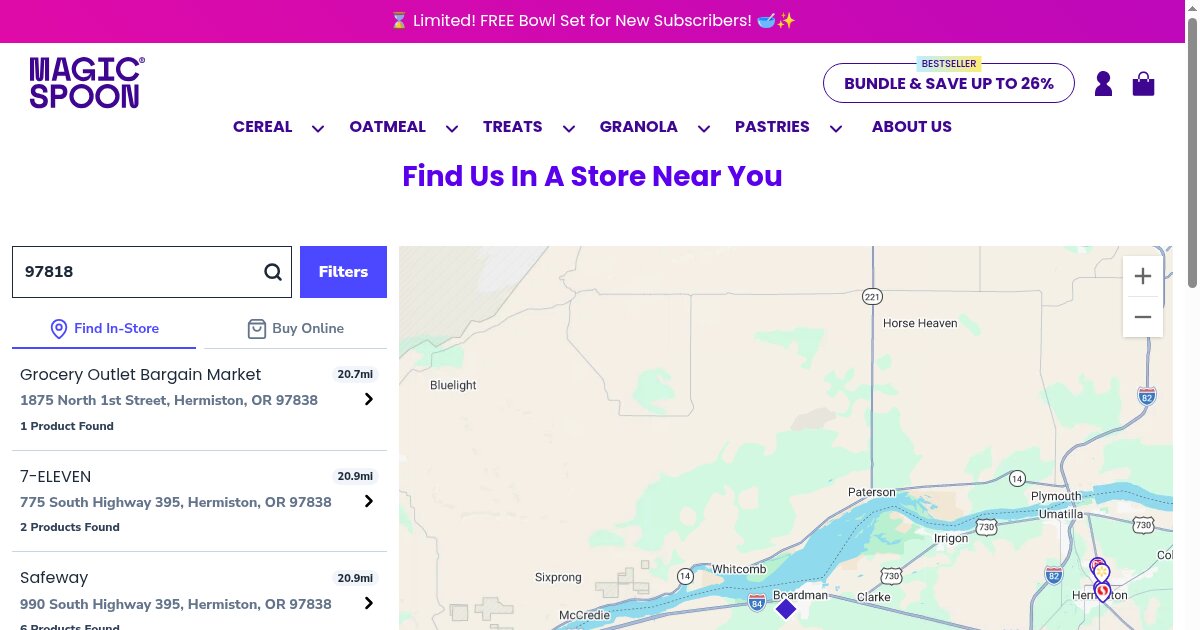
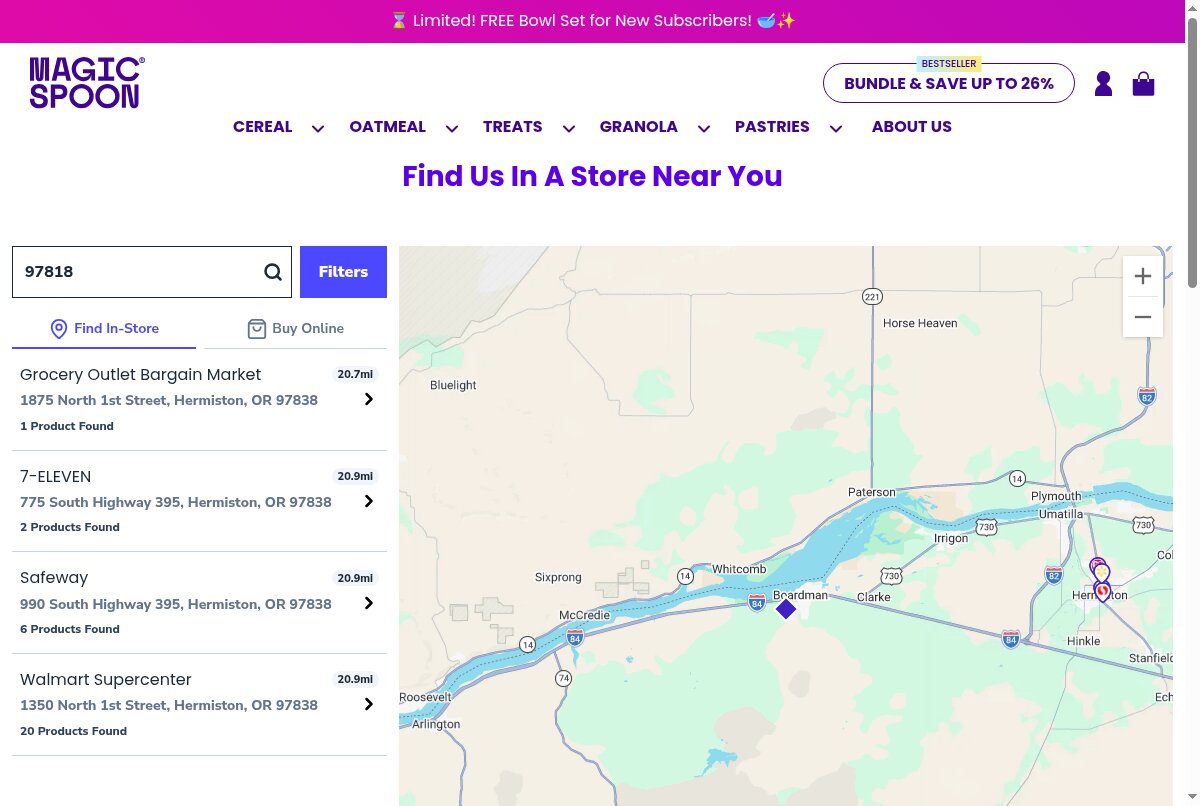 Magic Spoon's store locator: a ZIP code in the search box, a "Filters" button, "Find In-Store" and "Buy Online" tabs, a list of retailers with distances in miles and the number of products found, and a map with pins and zoom controls. Source: magicspoon.com, captured October 26, 2026.
Magic Spoon's locator shows the pattern. Under the heading "Find Us In A Store Near You", the search box arrives with a ZIP code (97818) already filled in, so the page shows results before the visitor types anything.
3. Offer an explicit "Use current location" button
Geolocation saves typing, especially on mobile. Most NN/g participants allowed location access when a site asked. Two problems came up: some desktop users did not notice the browser popup, and people who denied access sometimes could not change their mind later in the session.
NN/g recommends an explicit "Use Current Location" button, checkbox or link in the locator form. Trigger the browser permission prompt only when the visitor clicks it, and keep the text search available if they decline.
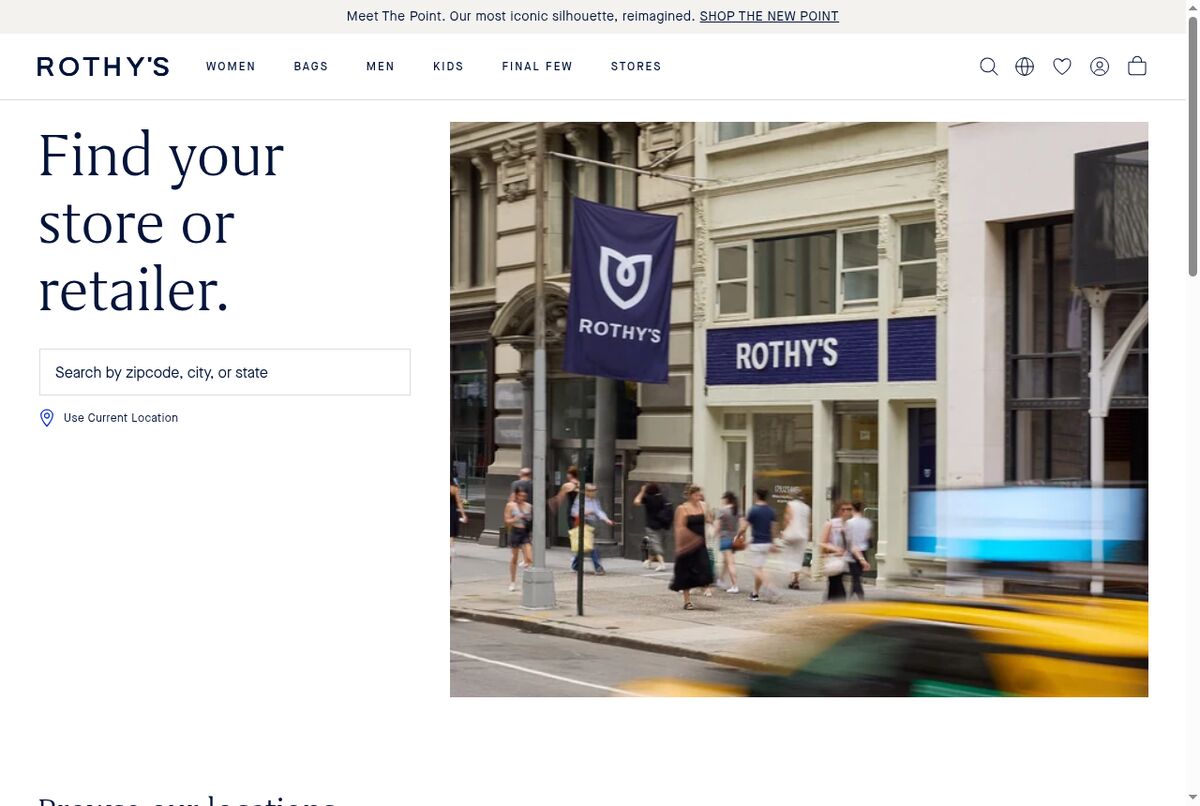 Rothy's store finder. Source: rothys.com, captured September 18, 2026.
4. Design the default state before the search
A blank map of the world helps nobody. Before the first search, show results for a pre-filled location, as Magic Spoon does, a map that fits all your stores, or a short list grouped by city if you have only a few.
5. Show the list and the map side by side
On desktop, a list next to a map lets visitors read details and see geography at once. Keep them in sync: clicking a store in the list should highlight its pin, and clicking a pin should bring up the matching card.
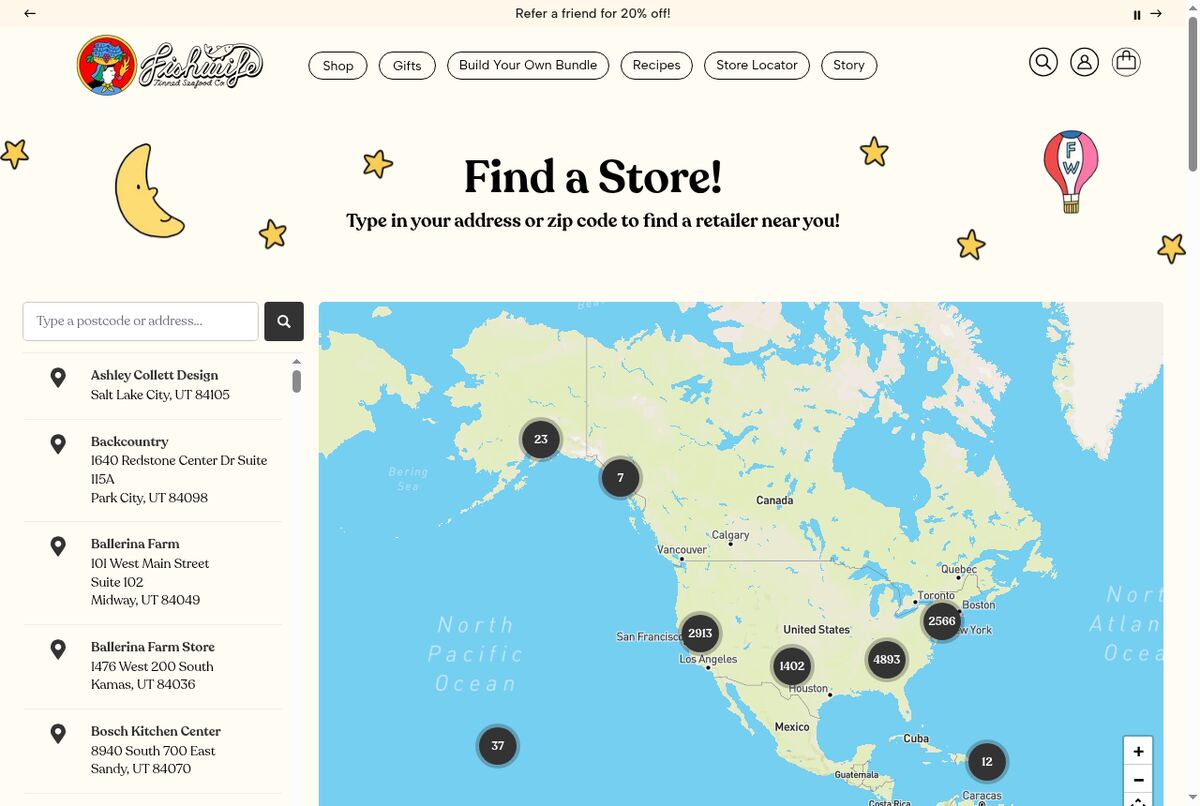 Fishwife's store locator, built with Stockist. Source: eatfishwife.com, captured September 18, 2026.
6. Show the distance and sort by it
NN/g's core test task was finding the closest location. Show the distance on every result, in miles or kilometres depending on your audience, and sort the list nearest first. Magic Spoon prints it in a badge on each row (20.7mi, 20.9mi).
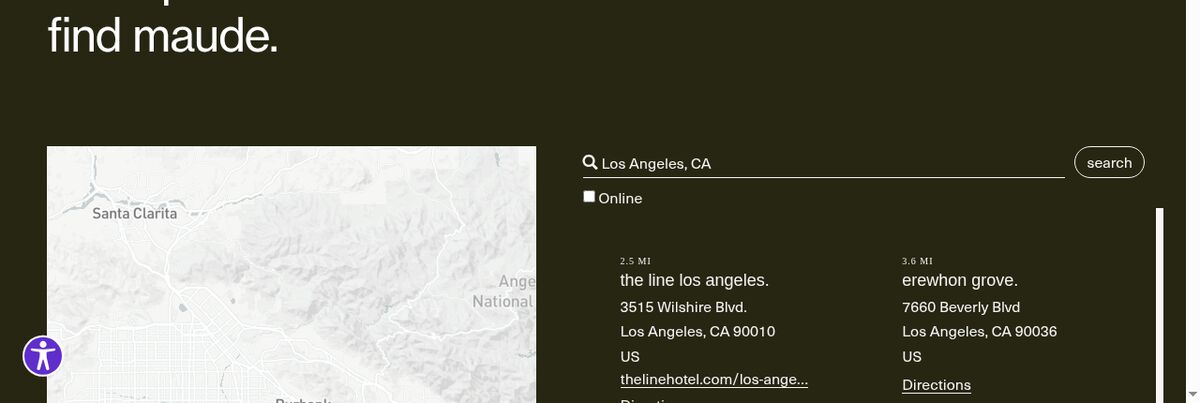 Maude's stockist search for Los Angeles. Source: getmaude.com, captured September 18, 2026.
7. Give every store a complete card
The card answers the questions that decide the trip:
- the store name and full street address;
- a phone number people can tap on mobile;
- opening hours, including lunch breaks or split hours;
- an open or closed status computed from those hours;
- a directions link and, if relevant, a website link.
NN/g notes that people who start on a search engine often come to your locator for specifics such as the services each location offers.
8. Add filters only when stores differ
Filters help when locations differ in what they offer. NN/g's test tasks included finding a location open at a certain time or with a specific amenity, and the article warns that oversimplified finders hide which locations meet a visitor's needs. Magic Spoon combines a "Filters" button with a product count on each card ("1 Product Found", "20 Products Found"), so a shopper looking for one product knows which retailer to try.
If every store carries the same range, skip the filters: NN/g also names over-complex finders as a problem.
9. Send directions to the visitor's map app
Link each store to an external map app for directions. NN/g found that only two of 11 sites in Study 4 used an on-site map tool for directions, and it welcomes the shift: people get a map interface they already know.
10. On mobile, show the list first
On a phone, a list and a map cannot sit side by side. Show the results list first, since it carries the addresses, distances and hours, and give the map a toggle or a tab. Make phone numbers and directions links large enough to tap.
11. Plan the empty state
Some searches return nothing nearby. Say so, show the nearest store anyway with its distance, and offer an online way to buy. Magic Spoon keeps a "Buy Online" tab next to "Find In-Store" for that.
12. Keep the page light, accessible and credited
Four technical points finish the job:
- Load the map only on the locator page. Product pages do not need the map library and its tiles.
- Make the list work without the map. Keyboard and screen reader users should reach every store through the list.
- Keep the map credits visible. If your map uses OpenStreetMap, the OpenStreetMap copyright page requires credit to OpenStreetMap and its contributors, and the OSMF Attribution Guidelines say that credit must reach anyone who views or interacts with the map. See our OpenStreetMap store locator guide.
- Publish addresses as text. NN/g advises making each location's details findable by people who search the web, and text gives search engines something to read.
How Locastore covers the checklist
On Shopify, Locastore covers most of these rules. You add the Store Locator block from the theme editor on any page, then pick one of six display modes and four map styles, set your brand accent color and edit the labels. The map uses Leaflet and OpenStreetMap tiles, so you create no Google Maps API key and open no billing account.
Visitors search an address or tap "Near me", see distances in kilometres or miles sorted nearest first, and narrow results with tag filters, while marker clustering groups nearby pins. Each store shows opening hours with several slots per day, an open or closed badge with the next closing time, and a directions link that opens Google Maps. Anonymous analytics count searches, direction clicks, phone calls and website clicks.
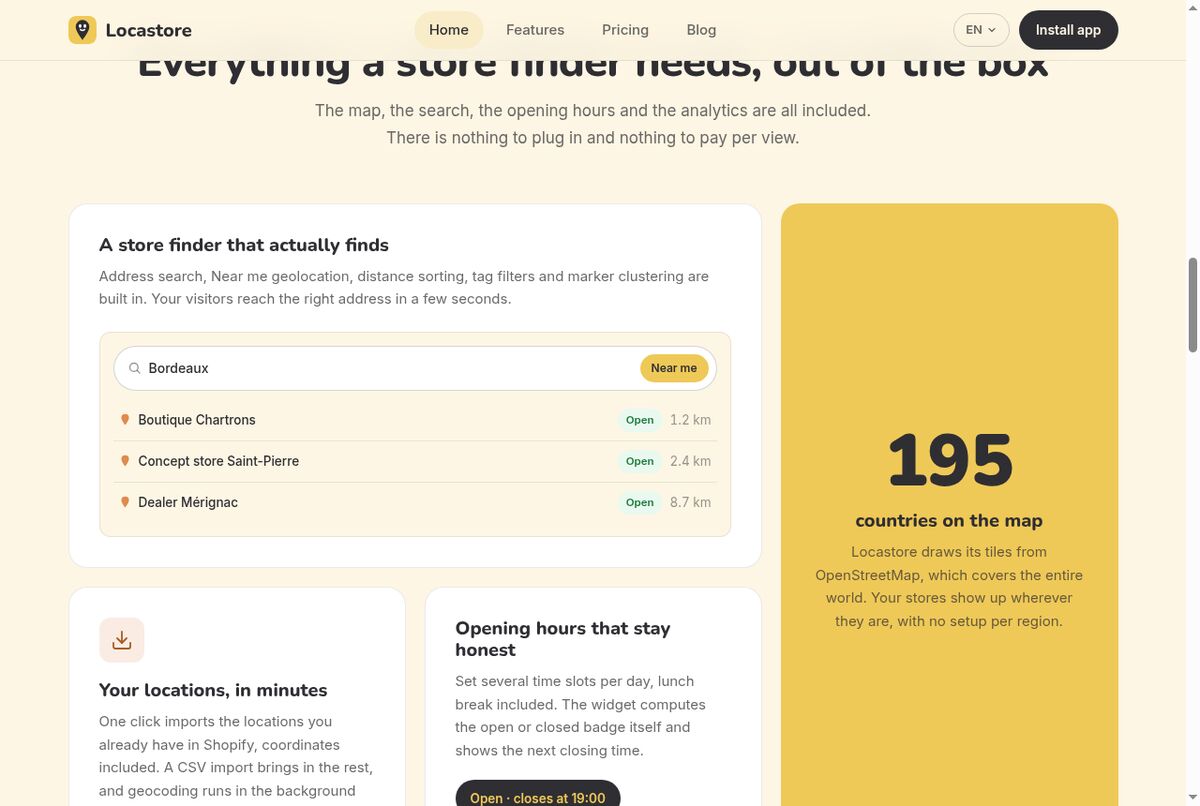 The store finder section of the Locastore home page, with search, "Near me", open badges, distances and "195 countries on the map". Source: locastore.app, captured September 18, 2026.
Import your Shopify locations in one click, upload a CSV file with background geocoding (Starter and up) or enter stores by hand. The free plan covers up to 5 locations, Starter ($5 per month) goes up to 30, and Pro ($24 per month) removes the limit, with a 14-day free trial on paid plans. For setup steps, see how to add a store locator to Shopify.
Frequently asked questions
What should a store locator page include?
A clearly labeled entry point, a search box that accepts a city or ZIP code, a button to use the visitor's current location, a list of results with distances next to a map, and a card for each store with its address, phone, hours and a directions link. Add filters if your stores differ in what they sell, and an online link for visitors with no store nearby.
Should a store locator use the visitor's location?
Yes, as an option. Nielsen Norman Group found that most participants allowed location access when a site asked, but some desktop users missed the browser prompt. It recommends an explicit Use Current Location button, checkbox or link in the locator form, so the visitor can start a location search on purpose.
Do I need on-site directions in my store locator?
No. In Nielsen Norman Group's fourth study, only two of the 11 sites tested used an on-site map tool for directions; the others linked out to an external mapping tool. NN/g sees this as a better experience, because people get directions in a map interface they already know.
Where should the link to the store locator go?
On every page. Nielsen Norman Group recommends that all pages link to the locator, because a visitor can decide to visit you from any page. A header or footer link with plain wording such as Find a store does the job.